The ROG Xbox Ally and Ally X offer a PC gaming experience for gamers on the go, with an Xbox interface to make it all more user-friendly. Though their standard storage capacities are low, they’re also easy to upgrade. While technically it is possible to transport up to 1TB of your game library on a microSD card like Kingston’s Canvas Go! Plus microSD Memory Card, with just a little more effort you can achieve even better performance by upgrading the device’s internal SSD.
Getting started
Items you’ll need for the process:
- A size 0 Phillips head screwdriver
- A plastic case opening tool (a guitar pick can work in a pinch)
- Ziploc or similar bags to store screws
- An M.2 2280 NVMe SSD
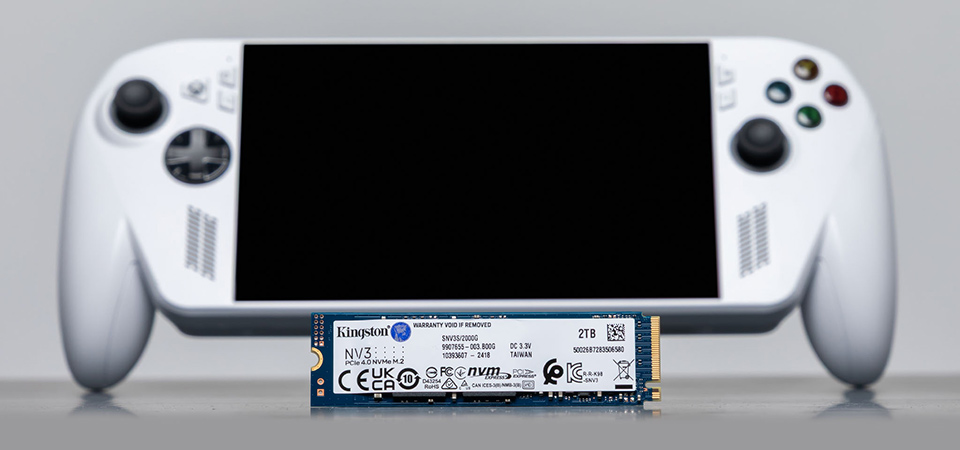
Kingston’s NV3 PCIe 4.0 NVMe SSD is available in the 2280 form factor with capacities up to 4TB, making it a suitable option and is also available exclusively in the 2280 form factor. Keep in mind the ROG Ally and Ally X will automatically limit the PCIe speeds to match the handheld specifications.
Before you begin the process, back up any data already on the replacement drive, since the setup process will format it, erasing all previous data. Discharge your computer’s battery down to below 25% before you attempt to open it, for safety, and power off the device. Place it face down on a soft surface and undo the screws on the back panel with your screwdriver. The bottom middle screw won’t initially come out all the way but loosening it is required to lift the bottom cover. It will detach when the cover comes off. Keep the screws in your ziploc bag so that they are all in the same place and accounted for. If your Ally casing is stubborn and won’t pop open when unscrewed, use the prying tool and slide it along the length of the case to undo the clips. Be careful when opening the back: there’s a ribbon cable connecting the back panel and motherboard. Be sure not to tear it when you set the back panel aside.
Inside your Ally
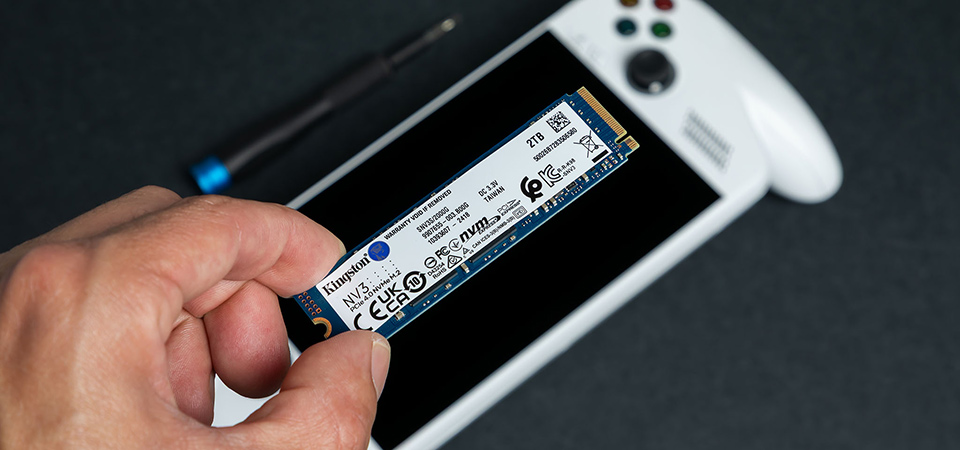
The next step is disconnecting the battery. You’ll see the battery connector under the fan on the right side. For the ROG Xbox Ally, use your opening tool to slide the metal clip back, then pull the connector up and out of its socket. However, as the ROG Xbox Ally X has no metal retaining clip, you can just lift it straight upward to disconnect.
Some ROG Xbox Ally models don’t require the battery to be removed, as the SSD is above it. If you need to remove the battery, simply unscrew its five screws and carefully lift it out. Similarly, some ROG Xbox Ally models may have a small strip of conductive fabric stuck to the motherboard and SSD. You can pull this up and remove the SSD from its slot. Don’t worry about replacing it, just discard it. Once you have put in your new drive and screwed it into place, replace the battery (if needed).
The ROG Xbox Ally X however has a black shield on top of the SSD. Unscrew the screw that holds the drive in place, delicately slide the SSD out and then insert the new one, securing it with the same screw. With that done, simply plug the battery connector back in, close the device up (making sure that all the case clips snap into place), and screw the six back panel screws back in. Easy!
New drive, new OS
The next step is to reinstall Windows on your new drive. Remove any SD cards in your device, then plug your Ally into the wall with its included 65W charger. Hold the volume down button while pressing the power button. This should trigger the device into its BIOS menu. Press Y to enter Advanced mode, then proceed to the Advanced menu. You can select ASUS Cloud Recovery to begin the installation. It will require connecting to Wi-Fi, and there will be a couple of reboots along the way before completion.
After your Ally has finished downloading and installing the disk image, the device will be ready to be set up anew, as if it were fresh out of the box. Except that now it can hold even more games!