How to prevent NVMe thermal throttling
While many SSDs can run reliably within their rated temperature range without extra cooling, keeping drive temperatures lower can help maintain consistent performance and reduce the risk of thermal throttling.
Improve case airflow
Good airflow lowers the ambient temperature inside your case, which naturally helps keep SSDs cooler without needing direct cooling. To optimise airflow, keep these factors in mind:
- System placement: Make sure your PC rests on a hard surface with plenty of clearance around its vents so airflow isn’t blocked.
- Fan type: Static-pressure fans work best for restrictive intakes (behind dust filters or tight mesh), while high-airflow fans are suited for open exhausts (rear/top).
- Pressure balance: Slight positive pressure (more intake than exhaust) not only keeps dust out but also helps maintain cooler air around your SSD.
- Case design: Mesh-fronted cases with unobstructed intake paths usually outperform closed designs. Regularly clean filters and vents to stop dust build-up, which can severely restrict airflow.
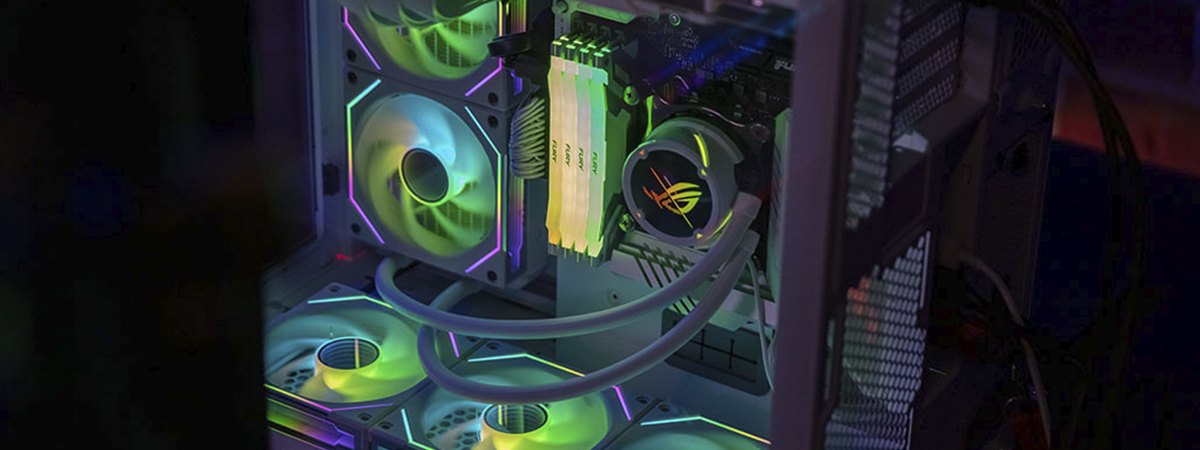
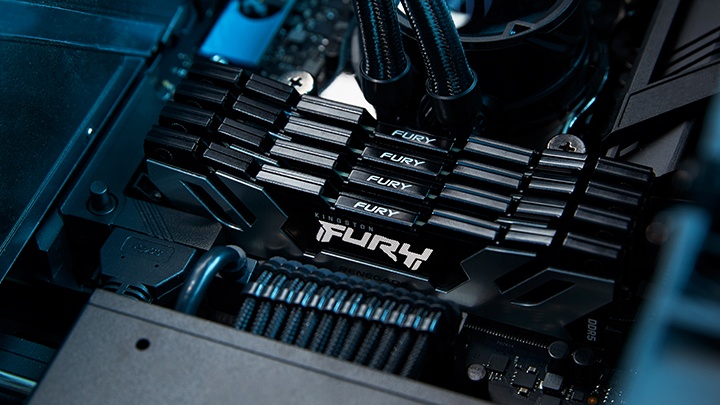
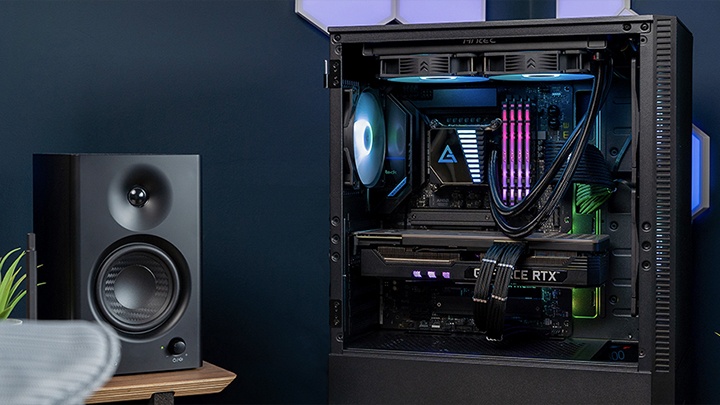
- Extra cooling options: You can keep your system cool using either air or liquid cooling. Air cooling is simple, effective and low maintenance, but for heavier gaming rigs or multi-SSD systems, liquid cooling can be more efficient and quieter under load.
- General overheating context: If your fans are constantly loud, or you notice shutdowns and freezes, that’s often a symptom of overall poor airflow. Improving intake/exhaust balance, or even just relocating your case to a space with more breathing room, can quickly stabilise system-wide temperature.
Avoid airflow blockages
Even well-placed fans can struggle if air can’t move freely around the components. Keep an eye on these common choke points:
- Cable management: Route front-panel and PSU cables behind the motherboard tray. Keep the area in front of the board’s M.2 slots clear to reduce heat build-up.
- GPU proximity: A large graphics card can create a hot pocket above the top PCIe slot, right where some M.2 sockets sit. If your board offers multiple M.2 positions, choose the slot with the best airflow gap from the GPU.
Use passive cooling (heatsinks and thermal pads)
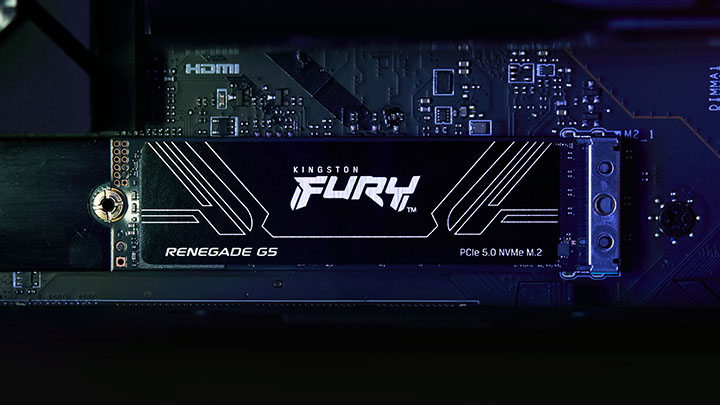
When fans alone aren’t enough, passive heatsinks can help spread and dissipate heat away from the SSD’s controller and NAND, helping to delay or prevent thermal throttling under sustained workload:
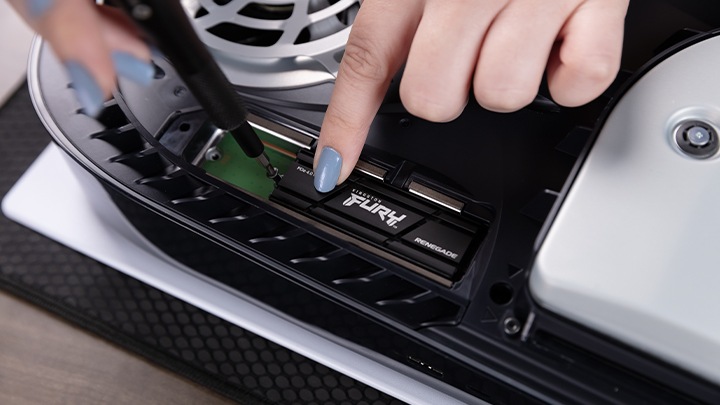
- Motherboard shields vs aftermarket: Many modern motherboards include M.2 NVMe heatsinks that perform well when installed correctly and can also make the system look aesthetically pleasing. If you use an aftermarket heat sink, check clearance for GPUs and side panels.
- Thermal pad thickness: Use the thermal pad supplied with your shield/heatsink and ensure full, even contact. Too thick and you reduce pressure; too thin and you lose contact.
- Mounting pressure: Tighten screws evenly. Over-tightening can bow the PCB; under-tightening compromises heat dissipation.
Keep your system clean
One of the reasons why it’s important to know how to clean your PC is that dust is an insulator and can restrict airflow, raise ambient temperature and undermine every other cooling step:
- Maintenance schedule: Clean filters every 4–8 weeks (more often in dusty rooms or if you have pets). Deep-clean the case and fans every 3–6 months.
- Tools: Use a soft brush and a low-pressure air blower. Hold fan blades still while cleaning to protect bearings.
- Filters and intakes: Washable mesh filters work best. Ensure they’re fully dry before refitting.
- Signs that you need to clean: Fans ramping harder than usual, higher idle temperatures or visible lint on front intakes.
Monitor temperatures
Keeping an eye on your SSD’s temperature is the best way to validate any cooling changes and catch issues before they affect performance. Most drives include built-in SMART temperature sensors, which you can read using vendor software or general system monitoring tools. For Kingston drives, the Kingston SSD Manager is a straightforward way to check live temperatures and overall drive health.
So, what counts as “normal”? Many gaming SSDs are rated for continuous operation up to around 70°C, although idle temperatures will sit much lower. The more important figure to watch is how the drive behaves under load. To test this, run a workload that reflects your usage, such as copying a large file, rendering a project or playing a game, and track temperatures for 10–15 minutes. You’ll want to see the temperature plateau rather than climbing steadily toward the throttling threshold.
If you notice repeated performance dips in read or write speed at the same temperature, that’s usually a sign the SSD is hitting its thermal limit.
Active cooling
Active cooling involves adding powered cooling solutions such as dedicated fans or even liquid cooling. Every PC needs cooling because a PC has a lot of components that heat up, but additional measures like liquid cooling and adding more fans can be particularly useful when running multiple NVMe SSDs, working with heavy workloads or in environments with higher ambient temperatures. These situations often push storage drives to sustained high speeds, where excess heat could otherwise cause thermal throttling.
Also, many modern motherboards now come with built-in NVMe heatsinks or shields designed to protect drives and manage heat automatically. These are often paired with a thermal pad for better contact and heat dissipation.