We notice you are currently visiting the UK site. Would you like to visit our main site instead?

Windows 11 PC performance features for gamers

Core Windows 11 gaming features you should be aware of

Windows 11 comes packed with several features designed to enhance your gaming experience, both in terms of overall performance as well as visuals. Let’s look at what you need to be aware of to ensure you have the best Windows 11 settings for when you are gaming:

  • 1. DirectStorage

    This allows NVMe SSDs to transfer a game's data directly to the graphics card, bypassing CPU bottlenecks and delivering blistering speeds for rendering, without long load times. For gaming, this means saying goodbye to loading screens and hello to faster and smoother gameplay.

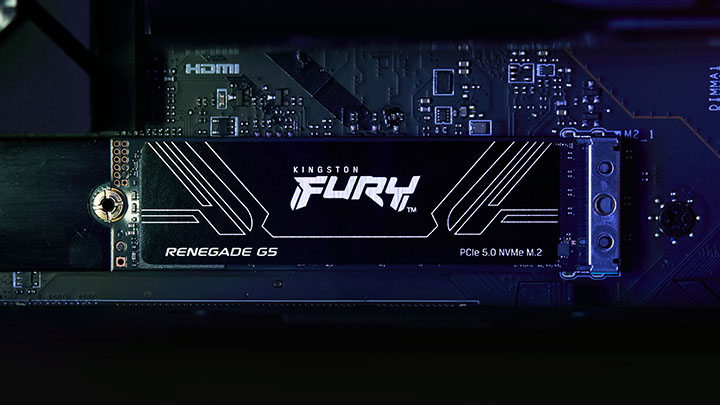
    PCIe 5.0 SSDs such as the Kingston FURY Renegade G5 will provide the best experience for gaming with DirectStorage by making the most of the next-gen SSD speed. You will also need to have the latest DirectX installed (version 12), which will further enable you to get peak performance from your graphics-intensive games via enhanced graphics quality, improved FPS and a reduced CPU overhead.

    With Windows 11, this is the perfect time to upgrade to an NVMe SSD to see the benefits of DirectStorage. Combined with memory upgrades and increasing the speed and capacity of your device's storage, these improvements can offer an opportunity to transform your overall gaming experience.

  • 2. Game Mode & Game Bar

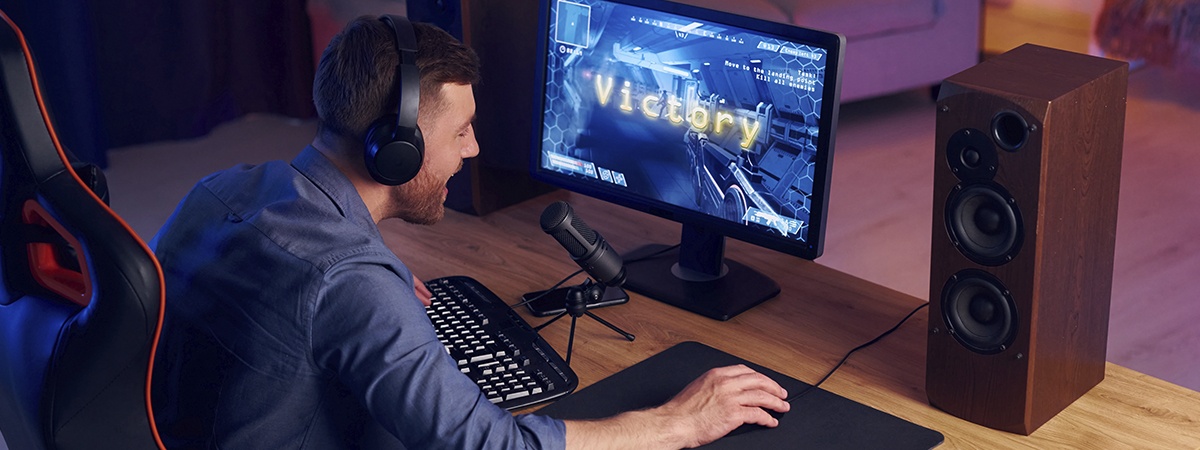
    Windows 11's Game Mode, which can be found under Settings > Gaming, improves performance by prioritising CPU and GPU resources for your game and minimising background tasks like updates and notifications.

    Game Mode helps reduce interruptions and can boost performance on mid-range PCs. However, it offers minimal benefit on high-end systems and can't manage third-party background apps.

    In addition to Game Mode, the Xbox Game Bar offers tools like screen recording and performance stats, but it can consume system resources even when not actively used. Competitive gamers, or those focused on maximising performance or minimising latency, can disable it under Settings > Gaming > Xbox Game Bar.

  • 3. HDR and graphic enhancements

    Windows 11 brings native support for Auto HDR, automatically detecting HDR-capable displays and enhancing the visual quality of games built on DirectX 12.

    This feature significantly expands the colour and brightness range, delivering more vibrant, immersive visuals. Auto HDR is another way that will elevate your gaming experience.

  • 4. Hardware-accelerated GPU scheduling

    This enables your graphics card to manage its own memory more efficiently, reducing latency and potentially improving performance in certain games. However, it can slightly increase VRAM usage, which could affect performance on GPUs that have limited memory.

    You can enable this setting by going to: Settings > System > Display > Graphics > Change default graphics settings, then turning Hardware-accelerated GPU scheduling to On.

    Some users will experience smoother performance, while others will notice little change. This will depend on the type of PC specifications you have, but it is worth testing.

  • 5. Variable refresh rate and windowed optimisations

    Variable refresh rate (VRR) helps to reduce screen tearing and stuttering by syncing your monitor’s refresh rate with the game’s frame rate, thus creating smoother visuals.

    Windowed optimisations enhance performance and reduce input latency for games running in windowed or borderless modes by allowing better use of modern GPU features.

    Both settings can be found under: Settings > System > Display > Graphics > Change default graphics settings. These features are most effective with supported displays and newer GPUs and are ideal for improving responsiveness without sacrificing the visual quality that you gain from Game Mode and HDR.

Was this helpful?

Kingston Product Finder

When you start with Kingston, choosing memory is easy.
With over 35 years of expertise, Kingston has the knowledge and resources you need to choose memory with confidence.

Search by System/Device

Simply enter the make and model number or system part number of the computer system or digital device to find the Kingston products you need.

Search by Part Number

Search by either the Kingston part number, distributor part number or manufacturer equivalent part number.

Related Articles